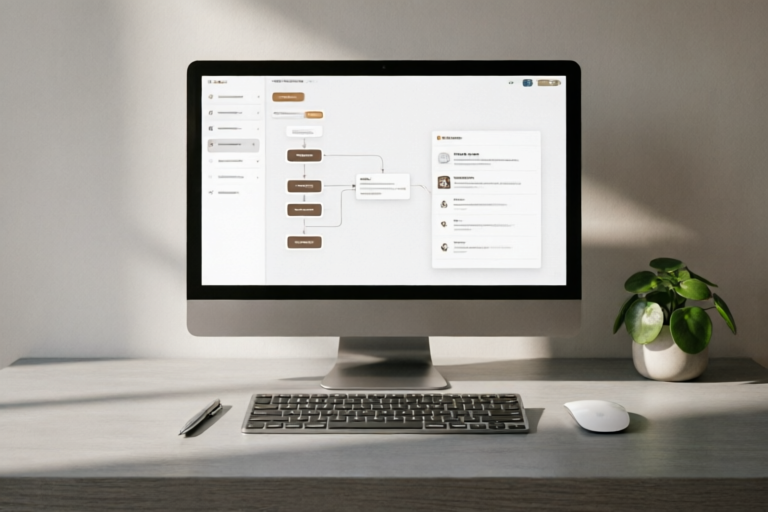
Beginner's Guide to Automating Workflows with Zapier
Effortlessly Automate Your Workflows with Zapier
Introduction to Workflow Automation
Definition of workflow automation: Workflow automation is the process of automating repetitive tasks within a business process. It involves using software or tools to streamline and optimize workflows, reducing manual effort and increasing efficiency.
Overview of Zapier and its role in automating workflows: Zapier is a popular automation platform that connects over 3,000 apps, allowing users to create custom workflows without writing any code. It helps businesses and individuals save time by automating routine tasks across various applications.
Benefits of using Zapier for beginners: For beginners, Zapier offers an easy-to-use interface, extensive app integrations, and a user-friendly setup process. It allows users to focus on their core tasks while letting Zapier handle the repetitive ones.
Getting Started with Zapier
Signing up and setting up an account
To get started with Zapier, visit the official website (https://zapier.com) and sign up for a free account. Once registered, you can log in and start exploring the platform.
Understanding the basics: triggers, actions, and workflows
A workflow in Zapier consists of three main components:
- Triggers: Events that initiate the workflow. For example, a new email received in Gmail can trigger a workflow.
- Actions: Tasks performed after the trigger. These could include sending an email, updating a spreadsheet, or creating a task in a project management tool.
- Workflows: A sequence of triggers and actions that automate a specific task or process.
Creating your first simple workflow
Let's create a simple workflow to send a Slack message whenever a new contact is added in HubSpot. Here’s how:
- Log in to Zapier and click on “Make a Zap.”
- Select “HubSpot” as the trigger app and choose “New Contact” as the trigger event.
- Select “Slack” as the action app and choose “Send Direct Message” as the action event.
- Map the fields from HubSpot to the corresponding fields in Slack.
- Test the workflow to ensure it works as expected.
Common Use Cases for Zapier Automation
Automating email marketing campaigns
With Zapier, you can automate email marketing campaigns by triggering emails based on user actions. For example, you can send a welcome email to new subscribers in Mailchimp whenever they sign up.
Synching data between different apps (e.g., Google Sheets and Trello)
Zapier allows you to sync data between different apps. For instance, you can automatically add new Trello cards to a Google Sheet whenever a new task is created in Trello.
Streamlining customer support tasks
Customer support teams can use Zapier to streamline tasks such as auto-responding to customer inquiries, updating CRM systems, and logging support tickets.
Advanced Features and Integrations
Exploring multi-step workflows and conditions
Zapier supports multi-step workflows and conditional logic, enabling you to create more complex automation scenarios. For example, you can create a workflow that sends an email only if a certain condition is met.
Using Zapier with popular business tools like Slack, Asana, and HubSpot
Zapier integrates seamlessly with popular business tools such as Slack, Asana, and HubSpot. This allows you to automate tasks across these platforms, improving collaboration and productivity.
Customizing workflows for specific business needs
Zapier provides flexibility to customize workflows according to specific business requirements. You can combine multiple triggers and actions to create workflows that fit your unique processes.
Best Practices for Effective Automation
Tips for designing efficient workflows
When designing workflows, consider the following tips:
- Keep workflows simple and focused on specific tasks.
- Test workflows thoroughly before deploying them in production.
- Monitor workflow performance regularly and make adjustments as needed.
Troubleshooting common issues and errors
Common issues in Zapier workflows may include incorrect field mappings, missing data, or API limitations. To troubleshoot, check the logs, review the configuration, and consult the Zapier help center.
Ensuring data security and privacy when automating
Data security and privacy are critical considerations when automating workflows. Ensure that sensitive information is handled securely and that all apps involved comply with relevant regulations.
Conclusion and Next Steps
In this guide, we’ve covered the basics of workflow automation with Zapier, including signing up, understanding triggers and actions, and creating your first workflow. We also explored common use cases, advanced features, and best practices for effective automation.
We encourage you to experiment with more complex workflows and continue learning about the vast possibilities offered by Zapier. For further learning and support, check out the official Zapier documentation, community forums, and tutorials available online.
Comments

I've been using Zapier for a while now and it really boosts my productivity. Thanks for the tips on designing efficient workflows.

Is there a way to integrate custom scripts into Zapier workflows?

This actually works! I automated my Trello board to update automatically from Google Calendar. Saved me so much time!

When automating, what precautions should I take to protect sensitive data?

I'm curious, how do I troubleshoot if my workflow isn't triggering as expected?

For email campaigns, I use Zapier to sync contacts from Google Sheets to Mailchimp. Super helpful for keeping lists updated.

Great intro! I signed up with Zapier and set up my first workflow in no time. The tutorial was spot on!