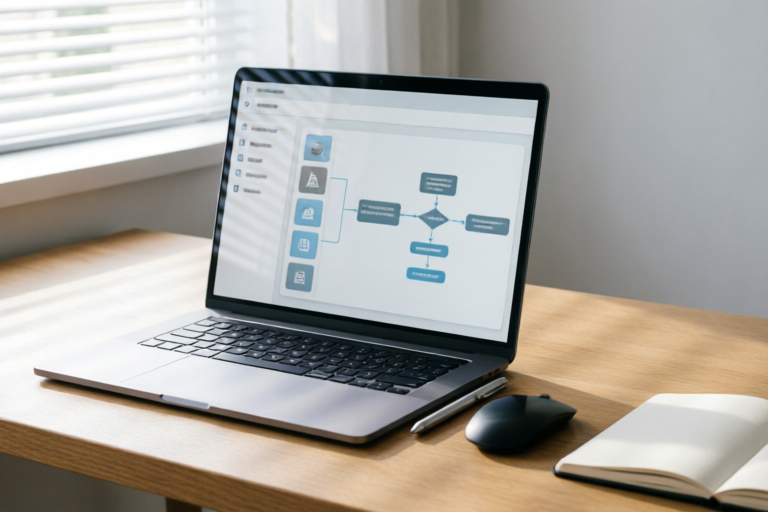
Beginner's Guide to Automation with Zapier
Effortless Automation Made Simple
Introduction to Automation and Zapier
Overview of automation in business processes: Automation is the use of technology to perform tasks that are normally done manually. It can be applied to various business processes such as data entry, customer service, and marketing. Automation helps businesses save time, reduce errors, and improve efficiency.
What is Zapier and how it simplifies automation tasks: Zapier is a web-based automation tool that connects different online services and automates workflows between them. With Zapier, you can create 'Zaps' that trigger actions based on specific events or triggers. For example, you can set up a Zap that automatically sends an email notification whenever a new contact is added to your CRM system.
Benefits of using Zapier for beginners: Zapier is user-friendly and requires no coding knowledge. It offers a wide range of pre-built integrations that can be customized to fit your needs. Additionally, Zapier provides a free tier, making it accessible for individuals and small businesses looking to automate their workflows without breaking the bank.
Getting Started with Zapier
Setting up a free account on Zapier: To get started with Zapier, simply visit Zapier.com and sign up for a free account. You can choose to log in with Google, Facebook, or Apple, or create a new account with your email address. Once your account is set up, you'll be taken to the dashboard where you can start building your first Zap.
Basic terminology: Zaps, triggers, actions, and workflows: A Zap is essentially a series of actions that are triggered by a specific event. The event that starts the Zap is called a trigger, while the subsequent actions are what the Zap does after the trigger occurs. Workflows refer to the entire sequence of steps involved in a Zap, from the initial trigger to the final action.
Step-by-step guide to creating your first Zap: Let's walk through the process of creating a simple Zap that sends an email notification whenever a new contact is added to your CRM system. First, go to the Zapier dashboard and click on 'Make a Zap.' Choose your trigger app (in this case, your CRM) and select the trigger event (new contact added). Next, choose your action app (email service provider) and configure the action settings. Finally, test your Zap to ensure it works as expected.
Common Use Cases for Zapier Automation
Automating email marketing campaigns: Zapier can help you automate your email marketing campaigns by syncing data between your email service provider and other tools like CRMs, calendars, and social media platforms. For example, you can set up a Zap that automatically sends a welcome email to new subscribers, or follow up with a personalized message based on their engagement with previous emails.
Synching data between different applications (e.g., CRM and calendar): Keeping track of appointments and meetings can be challenging, especially when managing multiple schedules. Zapier can help by syncing data between your CRM and calendar apps. For instance, you can set up a Zap that adds new contacts to your CRM to your calendar as soon as they're added.
Managing social media posts across platforms: Social media management can be time-consuming, but Zapier can simplify the process by allowing you to schedule and publish posts across multiple platforms at once. You can create a Zap that automatically publishes content from your blog or website to your social media accounts, ensuring consistent messaging and increased visibility.
Advanced Features of Zapier
Utilizing multi-step Zaps for complex workflows: Multi-step Zaps allow you to create more intricate workflows by chaining together multiple actions in a single Zap. This can be particularly useful for handling complex business processes that involve several steps. For example, you could set up a multi-step Zap that not only sends an email notification when a new contact is added to your CRM but also creates a task in your project management tool and updates a shared spreadsheet with the new contact information.
Integrating custom apps and APIs into your automations: Zapier supports integration with custom apps and APIs, giving you the flexibility to automate virtually any workflow. If your business uses a proprietary software solution or API, you can often find community-built or official integrations available within Zapier. Alternatively, you can build your own custom integration using Zapier's API.
Exploring advanced filters and conditions for more precise automation: Zapier offers advanced filtering and conditional logic options that allow you to fine-tune your automations. For example, you can set up a Zap that only triggers when certain criteria are met, such as a contact being added from a specific source or meeting a particular qualification. This ensures that your automations are both efficient and targeted.
Best Practices for Efficient Automation
Tips for designing effective Zaps: When designing your Zaps, it's important to think about the overall workflow and ensure that each step contributes to the desired outcome. Consider the order of operations and whether there are any unnecessary steps that can be streamlined. Additionally, make sure to test your Zaps thoroughly before going live to catch any potential issues.
Avoiding common pitfalls when setting up automations: One common mistake is overcomplicating your automations. While multi-step Zaps can be powerful, they can also become difficult to manage if not properly designed. Another pitfall is failing to account for edge cases or exceptions. Always consider what should happen when something unexpected occurs, and build in safeguards to handle these situations gracefully.
Monitoring and optimizing your automated processes: Once your automations are up and running, it's important to regularly monitor their performance and make adjustments as needed. Keep an eye on metrics like success rates, error rates, and completion times. Use this data to identify areas for improvement and optimize your automations for better efficiency and accuracy.
Conclusion and Next Steps
Recap of key points covered in the guide: In this guide, we've explored the basics of automation and Zapier, including how to set up your first Zap, common use cases for automation, advanced features, and best practices for efficient automation. By following these guidelines, you can begin automating your workflows and saving time on repetitive tasks.
Encouragement to experiment and explore additional integrations: Don't be afraid to experiment with different combinations of triggers and actions. The more you play around with Zapier, the more creative and efficient your automations will become. Take advantage of the extensive library of integrations available on Zapier to discover new ways to streamline your business processes.
Resources for further learning and support: For more information and guidance, check out Zapier's official documentation, tutorials, and community forums. These resources provide valuable insights and tips for getting the most out of Zapier. Additionally, consider joining online communities and forums dedicated to automation and productivity to connect with other users and share ideas.
Comments

Best part? No need to code. Just drag and drop. Saved me hours!

Love how you can integrate custom apps. Makes Zapier way more versatile.

I'm struggling with setting up my first Zap. Any advice for someone who's completely new to this?

The advanced features section is gold. Multi-step Zaps have really upped my game.

Syncing my CRM and calendar was a breeze thanks to this. Saved this for future reference!

Great intro to automating email campaigns. Any tips on integrating with Mailchimp?

Finally! A beginner-friendly guide to Zapier. This actually works, and I've set up my first Zap already! 🎉